iPhone App Guide
iPhone Companion App
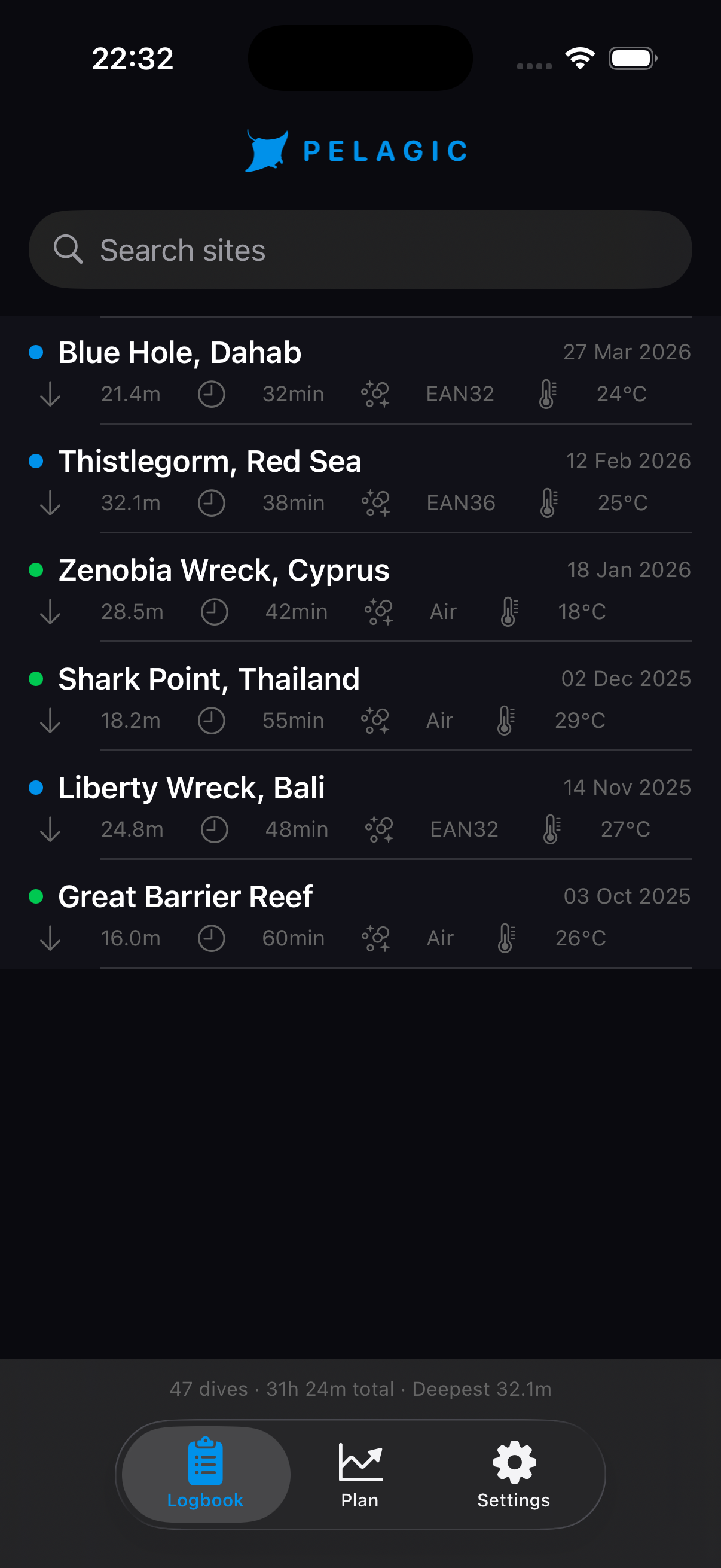
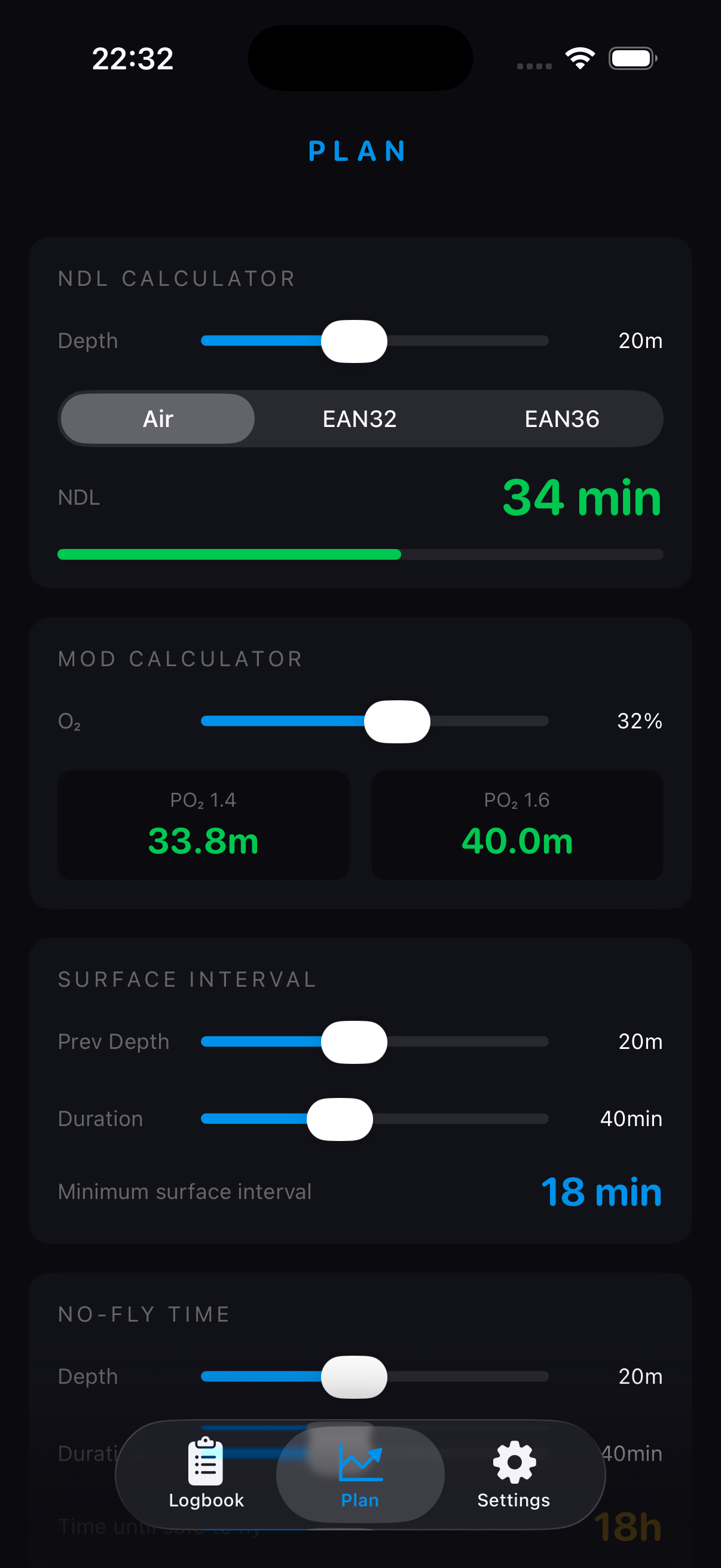
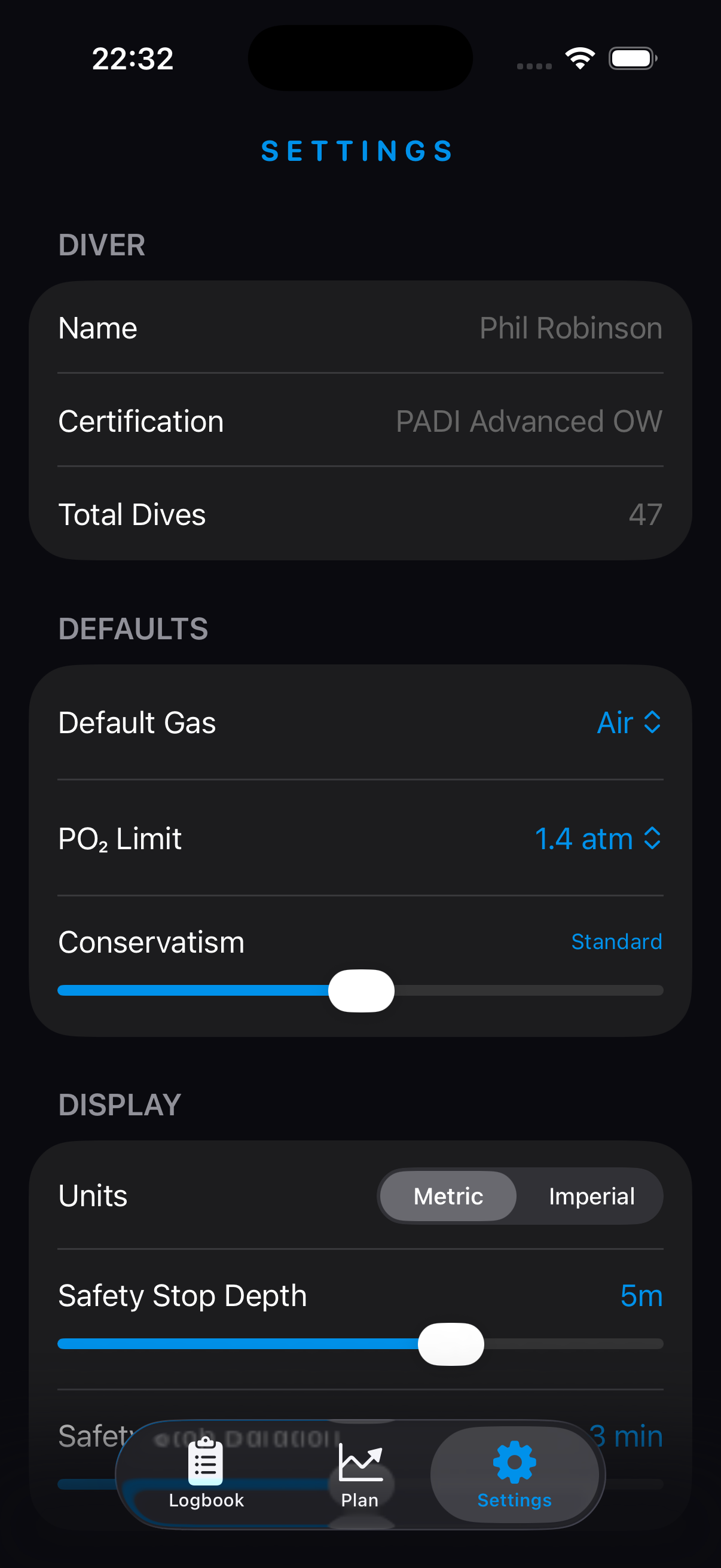
The Pelagic iPhone app is your dive logbook, planning tool, and control centre. While the Apple Watch handles the actual diving, the iPhone app stores your dive history, helps you plan future dives, and lets you export your data.
The iPhone app requires iOS 17 or later. It works alongside the Watch app — the Watch app is required for recording dives.
iPhone Companion Overview
The app has three main sections accessed via the tab bar:
| Tab | Icon | Purpose |
|---|---|---|
| Logbook | 📋 | Your complete dive history, synced from Watch |
| Plan | 📈 | NDL tables, MOD calculator, surface interval, no-fly time |
| Settings | ⚙️ | Diver profile, gas defaults, units, sync to Watch |
First Launch
On first launch, the splash screen appears briefly (manta logo + PELAGIC on black). The app then opens to the Logbook tab.
If no dives have been synced from your Watch yet, the logbook shows sample dives to illustrate the layout. These are replaced by your real dives once the Watch starts syncing.
Watch Sync
When you complete a dive on your Apple Watch, the dive summary is automatically sent to your iPhone via WatchConnectivity. This happens in the background — you don't need to do anything.
Synced dives appear in the logbook with a ⌚ badge. The sync includes:
- Start date and time
- Max depth, average depth, duration
- Water temperature
- Gas configuration
- Safety stop completion status
- Max ascent rate
- Depth profile data
If your iPhone isn't nearby when you finish a dive, the data is queued on the Watch and sent automatically the next time both devices are within Bluetooth range.
Dive Logbook
A reverse-chronological list of all your dives. Each dive card shows:
| Element | Description |
|---|---|
| Site name | Bold white text. "Unknown Site" if not yet named. |
| Date | Formatted as "27 Mar 2026" |
| Depth · Duration | Max depth in metres, total dive time |
| Gas | Air, EAN32, EAN36, or custom % |
| Temperature | Water temperature in °C |
| Gas dot | 🟢 Green = Air, 🔵 Blue = Nitrox |
| ⌚ badge | Indicates dive was synced from Apple Watch |
| Chevron | Tap to open dive detail |
Stats bar
At the bottom of the logbook: total dives · total time (e.g. "31h 24min") · deepest dive.
Dive Detail
Tap any dive to see its full detail view.
Depth profile chart
A line chart showing depth over time for the entire dive. Shows the descent, bottom phase, any ascents, and the ascent to surface. Built from 4-second interval depth samples recorded on the Watch.
Stats grid
| Stat | Description |
|---|---|
| Max depth | Deepest point reached |
| Duration | Total dive time from entry to exit |
| Avg depth | Mean depth throughout the dive |
| Temperature | Water temperature |
| Gas | Breathing gas used |
| Max ascent rate | Fastest ascent speed. ✓ if ≤9m/min. |
| Safety stop | ✓ completed, ✗ skipped |
Editing Dives
After a dive syncs to your iPhone, you can add context. All fields are optional.
| Field | Description |
|---|---|
| Site name | Name of the dive site (e.g. "Blue Hole, Dahab"). Tap to edit. |
| Notes | Free text notes about the dive. What you saw, conditions, etc. |
| Buddy | Your dive buddy's name |
| Rating | 1–5 star rating. Tap the stars. |
Changes are saved automatically as you type.
Search & Filter
The search bar at the top of the logbook filters dives by site name. Tap the search field and start typing — results update instantly.
UDDF Export
Export your entire logbook in UDDF (Universal Dive Data Format) — an open XML standard compatible with Subsurface, MacDive, DiveLog, and most dive logging software.
How to export
- Open the Logbook tab
- Tap Export UDDF (top right)
- The share sheet appears — save to Files, AirDrop to a Mac, email, etc.
What's included
Each dive in the export includes start date/time, max depth, average depth, duration, gas configuration, and dive profile data where available.
UDDF is an open format — you own your dive data. Export at any time to use with any compatible software or to keep a local backup.
NDL Calculator
Calculate the No Decompression Limit for a planned depth and gas mix, powered by the same Bühlmann ZHL-16C engine as the Watch app.
How to use
- Set your planned depth using the slider (5–40m)
- Select your gas (Air / EAN32 / EAN36)
- The NDL updates instantly
Reading the result
The NDL is shown with a colour bar:
- Green — NDL >20 min — plenty of time at this depth
- Amber — NDL 10–20 min — limited bottom time
- Red — NDL <10 min — very limited time, consider shallower dive
The NDL calculator assumes a fresh diver with no prior nitrogen loading. If you've dived recently, your actual NDL will be shorter — account for surface interval.
MOD Calculator
Calculate the Maximum Operating Depth for any nitrox blend.
Adjust the O₂% slider (21–40%) and the app shows:
- MOD at 1.4 atm PO₂ — PADI/BSAC recreational standard
- MOD at 1.6 atm PO₂ — NOAA maximum
Formula: MOD = (PO₂_limit ÷ O₂_fraction − 1) × 10
Example: EAN32 at 1.4 PO₂ → (1.4 ÷ 0.32 − 1) × 10 = 33.75m
Surface Interval Calculator
Estimate the minimum surface interval needed before a second dive.
Enter your previous dive's depth and duration using the sliders. The calculator returns a recommended minimum surface interval based on nitrogen loading.
This is a simple heuristic calculator. For precise repetitive dive planning, use the PADI Recreational Dive Planner tables or equivalent. Always be more conservative rather than less.
No-Fly Time Calculator
Calculate the recommended no-fly time before a planned dive trip.
Enter your planned dive depth and duration. The calculator returns the minimum time to wait before flying.
- Minimum 18 hours for any recreational dive
- Longer for deeper or multiple dives
- Based on DAN/PADI recommendations
Diver Profile
Your personal diving information, used in logbook records and exports.
| Field | Description |
|---|---|
| Name | Your name — appears in UDDF exports |
| Certification | Your highest dive certification (e.g. PADI Advanced OW) |
| Training agency | PADI, BSAC, NAUI, SSI, etc. |
| Total dives | Your logged dive count |
Default Gas
Set the gas that's pre-selected when you open the Watch app for a new dive. Options: Air, EAN32, EAN36, Custom.
You can always change the gas on the Watch before a specific dive via the Gas Setup screen.
Conservatism
Set your default conservatism level (−2 to +2). This controls the Gradient Factor applied to decompression calculations. See the Watch App Guide — Conservatism for full details.
Units & Display
| Setting | Options |
|---|---|
| Units | Metric (m, °C) or Imperial (ft, °F) |
Unit changes apply to both the iPhone app and the Watch app (synced automatically).
Safety Stop Settings
| Setting | Default | Description |
|---|---|---|
| Safety stop depth | 5m | Depth at which the safety stop screen triggers on ascent |
| Safety stop duration | 3 min | Required stop time |
| Enable safety stop reminder | On | Whether to show the safety stop screen automatically |
Sync to Watch
Tap Sync to Watch in Settings to push your current settings (gas defaults, conservatism, units, safety stop preferences) to your Apple Watch.
A "Synced ✓" confirmation appears briefly when complete. The Watch app will use the new settings on the next dive.
Settings are also synced automatically when you finish a dive. Manual sync is useful if you change settings and want them on the Watch before your next dive.
iCloud Sync
Pelagic uses iCloud to back up and sync your logbook across your iPhone, iPad, and other iOS devices (coming in a future update). Your dive data is stored in your private iCloud container — not on Pelagic's servers.
UDDF Format
UDDF (Universal Dive Data Format) is an open XML standard for dive data exchange. Files exported from Pelagic are compatible with:
- Subsurface — free, open-source dive logging (Windows, Mac, Linux)
- MacDive — Mac dive logbook
- DiveLog — iOS dive logging
- Most professional dive computer software
Privacy
- All dive data is stored locally on your device and in your personal iCloud
- No dive data is sent to Pelagic's servers
- GPS position (surface location) is recorded only at the start of a dive — not tracked continuously
- Heart rate data is read from HealthKit with your permission and is not shared
- No analytics or telemetry without explicit consent